
Using Epson Printer User Manuals to Get the Most From Your Machine
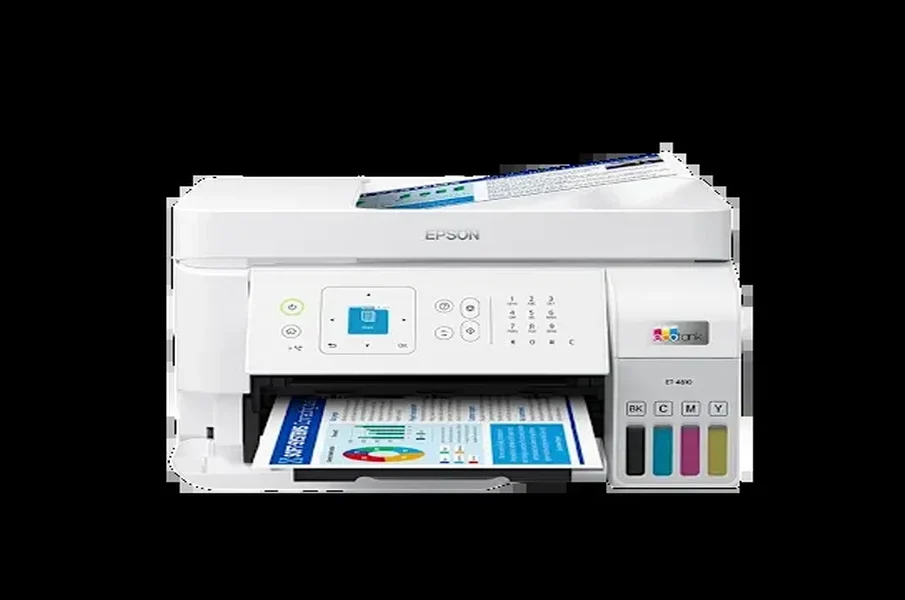
Epson has built a reputation across several printer families that target different users. The EcoTank line replaces ink cartridges with refillable tanks for high volume households and small offices. WorkForce models focus on business productivity. Expression printers serve home and photo printing needs. Each of these lines has its own setup quirks, its own maintenance routines, and its own features that the user manual explains step by step. This guide covers how to use Epson manuals to get a smooth setup and a long working life from any Epson printer.
Finding Your Model and the Matching Document
Epson model numbers are printed on the front of the unit, near the control panel, or on the rear label. An ET 2850 EcoTank is a different machine from an ET 2800, and the manuals differ in the section on tank capacity, supported papers, and wireless features. Always start with the exact full model number when searching for documentation.
A reliable archive like Epson printer user manuals organizes documents by series, which helps when comparing two similar models before buying or when servicing several Epson printers in one office.
EcoTank Setup and First Fill
EcoTank setup differs from cartridge models in important ways. The manual explains the initial ink charging process, where the included ink bottles are emptied into the tanks and the machine pulls ink through the internal system for the first time. This initial charge can take fifteen to thirty minutes and uses a meaningful share of the first set of bottles. Cancelling the charge or unplugging during the process can damage the print head.
The manual also shows the alignment routine that should be run after the first ink charge. Skipping it leaves the prints slightly misaligned and reduces sharpness on photos and graphics.
WorkForce and Business Features
WorkForce manuals cover office focused features such as automatic duplex scanning, scan to network folder, scan to email, fax setup, and user authentication on supported models. The control panel walkthrough in the manual shows the exact path to enable each feature.
Office tip: Many WorkForce models support Epson Connect, which lets you email a document directly to the printer’s unique email address and have it printed. The manual explains how to register the printer with the service.
For Ethernet connected office models, the manual covers static IP configuration, port settings, and how to access the embedded web interface for advanced administration.
Print Heads, Cleaning, and Ink
Epson uses Micro Piezo print heads, which are fixed parts of the printer rather than disposable parts of the cartridge. The manual explains the nozzle check pattern, the head cleaning cycles, and the deep cleaning procedure for stubborn clogs. Excessive cleaning wastes ink, so the manual usually recommends starting with the lightest cleaning cycle and escalating only if needed.
For EcoTank models, the manual lists the ink bottle part numbers for each color. Using non Epson bottles can affect the warranty on some models, so the manual is the place to confirm what your specific printer supports.
Photo Printing on Expression Models
Expression series printers focus on photo quality, and their manuals dedicate significant space to media selection, color profile installation, and borderless printing settings. The manual lists the supported photo paper sizes, the recommended Epson papers for best results, and the steps to install the color profiles that match each paper type.
For users who print from photo editing software, the manual explains how to use the printer driver’s preview, advanced color controls, and high quality mode for fine art prints.
Wireless and Mobile Setup
Modern Epson printers connect to phones and tablets through the Epson Smart Panel app, Apple AirPrint, Mopria Print Service on Android, and direct WiFi Direct mode for guest devices. The manual walks through each option, including the steps to enable WiFi Direct without joining the home network.
Network troubleshooting has its own section. When a printer drops off the network, the manual lists the diagnostic steps in order: network status page, signal strength check, channel interference factors, and router compatibility notes.
Documentation for Older and Stylus Models
Epson also produced the long running Stylus line and several earlier series that are no longer supported on the main website. Independent archives such as manualmachine.com preserve documentation for these older models. A Stylus C88+ from a decade ago still has its full user guide available for download, which makes refurbished and second hand Epson printers usable without guessing.
Final Thoughts
Epson printer user manuals turn complex hardware into something you can operate confidently. Initial setup proceeds cleanly, ink systems get charged correctly, hidden features become accessible, and the inevitable maintenance questions have documented answers. Find your exact model, download or view the matching guide, and refer back to it whenever something behaves unexpectedly. The few minutes spent reading the relevant section often save hours of frustration and avoid unnecessary calls to support.



Leave a reply



-
Heading on Holiday? Keeping an Eye on Your Business From Afar
For a lot of small business owners, taking a proper holiday feels ...